In order to start pushing updates, you will need to create a release.
Creating a release builds and submits your app to Patchwing. Patchwing saves the
compiled Dart code from your application in order to make updates smaller in
size.
Create an Android release by running the following command:
patchwing release android
Example output:
$ patchwing release android✓ Building release (9.6s)✓ Fetching apps (0.2s)✓ Detecting release version (0.2s)✓ Fetching releases (68ms)🚀 Ready to create a new release!📱 App: new_flutter_app (7a29188a-9363-426a-9a36-74a5e166373d)📦 Release Version: 1.0.0+1🕹️ Platform: android (arm64, arm32, x86_64)Would you like to continue? (y/N) Yes✓ Fetching Flutter revision (30ms)✓ Updating release status (67ms)✓ Creating artifacts (2.8s)✓ Updating release status (62ms)✅ Published Release!Your next step is to upload the app bundle to the Play Store.build/app/outputs/bundle/release/app-release.aabSee the following link for more information:https://support.google.com/googleplay/android-developer/answer/9859152?hl=en
If your application supports flavors or multiple release targets, you can
specify the flavor and target using the --flavor and --target options:
patchwing release android --target ./lib/main_development.dart --flavor development
By default, patchwing release android builds an AppBundle (.aab). If you
would like to also generate an Android Package Kit (.apk), use the following
command:
patchwing release android --artifact apk
To release with a different Flutter version, you can specify the version using
the --flutter-version flag.
Create an iOS release by running the following command:
patchwing release ios
Example output:
$ patchwing release ios✓ Fetching apps (0.2s)✓ Building release (59.0s)✓ Getting release version (40ms)✓ Fetching releases (0.1s)🚀 Ready to create a new release!📱 App: My App (7a29188a-9363-426a-9a36-74a5e166373d)📦 Release Version: 1.0.0+1🕹️ Platform: iosWould you like to continue? (y/N) Yes✓ Fetching Flutter revision (40ms)✓ Creating release (0.1s)✓ Creating artifacts (5.1s)✓ Updating release status (57ms)✅ Published Release!Your next step is to upload the ipa to App Store Connect.build/ios/ipa/new_flutter_app.ipaTo upload to the App Store either: 1. Drag and drop the "build/ios/ipa/new_flutter_app.ipa" bundle into the Apple Transporter macOS app (https://apps.apple.com/us/app/transporter/id1450874784) 2. Run xcrun altool --upload-app --type ios -f build/ios/ipa/new_flutter_app.ipa --apiKey your_api_key --apiIssuer your_issuer_id. See "man altool" for details about how to authenticate with the App Store Connect API key.
If your application supports flavors or multiple release targets, you can
specify the flavor and target using the --flavor and --target options:
patchwing release ios --target ./lib/main_development.dart --flavor development
To release with a different Flutter version, you can specify the version using
the --flutter-version flag.
Depending on how you normally sign your iOS app, you may see an error at the end
of the build saying something like:
Runner.app requires a provisioning profile with ___ feature or that no signing
certificate was found. This can be addressed in a few ways:
If you are releasing on your local machine (i.e., not in a CI environment), this
option is easier than the following options, but does not always work well in CI
environments.
In Xcode, open your project and navigate to the “Signing & Capabilities” tab.
Ensure that “Automatically manage signing” is checked.
You may need to provide an ExportOptions.plist file to the
patchwing release ios command. This file is used by Xcode to determine which
certificate and provisioning profile should be used to sign the .ipa. An example
of this file is:
Create a Linux release by running the following command:
patchwing release linux
Example output:
$ patchwing release linux✓ Fetching apps (0.3s)✓ Building app bundle with Flutter 3.41.4 (1e0e5760ee) (18.3s)✓ Fetching releases (0.1s)🚀 Ready to create a new release!📱 App: sample (d0cf1d8f-e741-4f5d-b280-b794000df1cd)📦 Release Version: 1.0.13+2🕹️ Platform: linux🐦 Flutter Version: 3.41.4 (1e0e5760ee)Would you like to continue? (y/N) Yes✓ Fetching releases (0.1s)✓ Creating release (0.3s)✓ Updating release status (0.1s)✓ Uploading artifacts (3.5s)✓ Updating release status (1.7s)✅ Published Release 1.0.0+1!
Create a macOS release by running the following command:
patchwing release macos
Example output:
$ patchwing release macos✓ Fetching apps (0.3s)✓ Building app bundle with Flutter 3.41.4 (1e0e5760ee) (18.3s)✓ Fetching releases (0.1s)🚀 Ready to create a new release!📱 App: sample (d0cf1d8f-e741-4f5d-b280-b794000df1cd)📦 Release Version: 1.0.13+2🕹️ Platform: macos🐦 Flutter Version: 3.41.4 (1e0e5760ee)Would you like to continue? (y/N) Yes✓ Fetching releases (0.1s)✓ Creating release (0.3s)✓ Updating release status (0.1s)✓ Uploading artifacts (3.5s)✓ Updating release status (1.7s)✅ Published Release 1.0.13+2!macOS app created at build/macos/Build/Products/Release/new_flutter_app.app.To create a patch for this release, run patchwing patch --platforms=macos --release-version=1.0.0+1Note: patchwing patch --platforms=macos without the --release-version option will patch the current version of the app.
If your application supports flavors or multiple release targets, you can
specify the flavor and target using the --flavor and --target options:
patchwing release macos --target ./lib/main_development.dart --flavor development
To release with a different Flutter version, you can specify the version using
the --flutter-version flag.
patchwing release macos --flutter-version 3.44.0
Create a Windows release by running the following command:
patchwing release windows
Example output:
$ patchwing release windows✓ Fetching apps (0.3s)✓ Building Windows app with Flutter 3.41.4 (1e0e5760ee) (18.3s)✓ Fetching releases (0.1s)🚀 Ready to create a new release!📱 App: sample (d0cf1d8f-e741-4f5d-b280-b794000df1cd)📦 Release Version: 1.0.0+1🕹️ Platform: windows🐦 Flutter Version: 3.41.4 (1e0e5760ee)Would you like to continue? (y/N) Yes✓ Fetching releases (0.1s)✓ Creating release (0.3s)✓ Updating release status (0.1s)✓ Uploading artifacts (3.5s)✓ Updating release status (1.7s)✅ Published Release 1.0.13+2!Windows executable created at build/windows/x64/runner/ReleaseTo create a patch for this release, run patchwing patch --platforms=windows --release-version=1.0.0+1Note: patchwing patch --platforms=windows without the --release-version option will patch the current version of the app.
If your application supports flavors or multiple release targets, you can
specify the flavor and target using the --flavor and --target options:
patchwing release windows --target ./lib/main_development.dart --flavor development
To release with a different Flutter version, you can specify the version using
the --flutter-version flag.
patchwing release windows --flutter-version 3.44.0
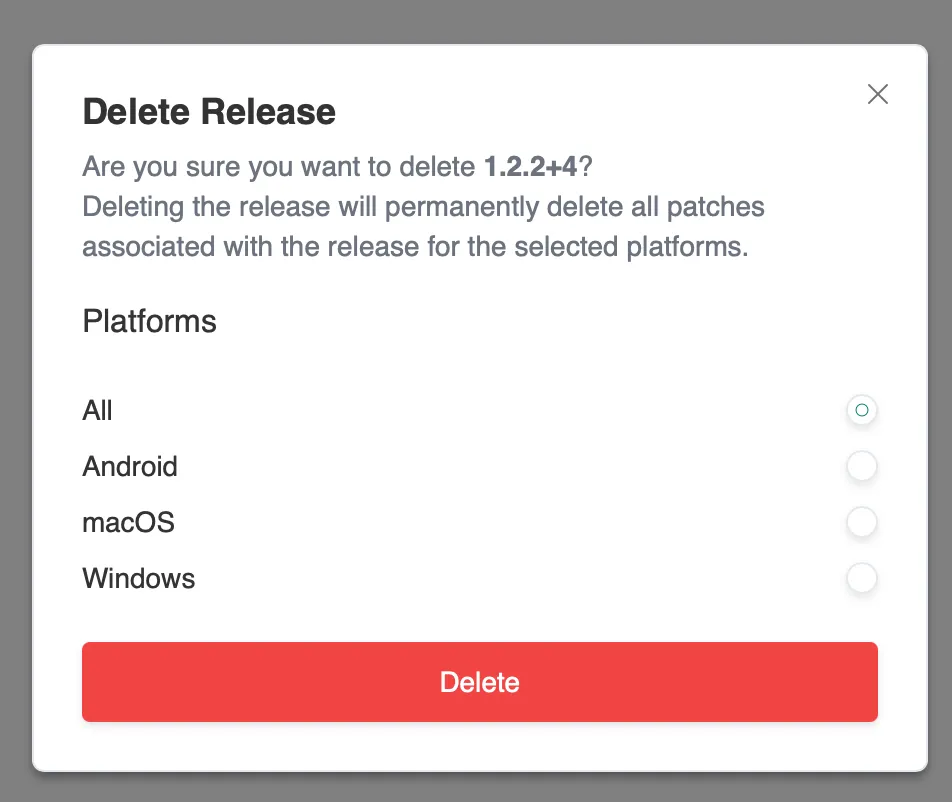
You can delete a release for your app (as defined by your patchwing.yaml) on the
Patchwing console.
Navigate to the application
Click on the release you wish to delete
Go to the “Settings” tab at the top of the page
In the “Danger Zone” there will be a “Delete” button
In order to complete the delete request you do need to confirm which binaries
you would like to be deleted. You can easily delete all releases or pick by
platform. The list of platforms shown is based on the binaries that are uploaded
for that release.
A common question we get asked is: Does Patchwing require publishing to the App
Store or Play Store?
No. Patchwing works fine with side-loading and mobile device management (MDM) on
Android. We’ve not had anyone try Patchwing with iOS Developer Enterprise
program, but we expect it to work just as well.
To build Patchwing for distribution via APK (e.g. side-loading), use the
--artifact flag with the patchwing release command. For example:
patchwing release android --artifact=apk
That will produce both .apk and .aab files. You can distribute either or both
as needed.